Imagine this: halfway through your party, a big screen begins displaying photos that your guests are taking — in real time. The bride's family appears on the slide. The group of friends who just took a selfie watches their photo appear on screen within seconds. The emotional toast captured from 30 different angles.
That's what a live slideshow does for your event. And with Memoly, it takes just a few minutes to set up.
What is a live event slideshow?
A live slideshow (sometimes called a photo wall or event social wall) is a photo and video presentation that updates automatically as guests submit their photos. Unlike a static slideshow with pre-selected photos, a live slideshow is dynamic, collaborative, and creates a completely unique experience.
During the event, you project it on:
- A big screen or projector rented for the venue
- A TV connected to a laptop or tablet
- A monitor at the bar, entrance, or reception area
As guests scan the QR Code and submit photos from their phones, those photos appear automatically on the slideshow — no manual updates, no technical intervention needed.
Why use a live slideshow at your event?
Natural guest engagement
When people know their photo might appear on the big screen, the motivation to participate and submit increases significantly. It's an organic incentive that turns passive guests into active participants.
Complete event coverage
With dozens of phones pointed at different moments simultaneously, your event gets covered from every angle — including the behind-the-scenes moments the professional photographer simply can't be everywhere to capture.
Entertainment between key moments
Events have natural pauses: between the ceremony and reception, during dinner, between songs. The live slideshow fills these moments with content the guests themselves created, keeping the atmosphere lively and connected.
A collective, emotional keepsake
Seeing your own photo on the big screen during a party is a memorable experience. Guests often say it was one of the most touching moments of the event — and it makes the occasion feel more personal and celebratory.
How to set up a live slideshow with Memoly
Step 1: Create the event album
Go to memoly.com.br and create an album for your event. Name it, configure permissions, and generate your unique QR Code.
Step 2: Distribute the QR Code
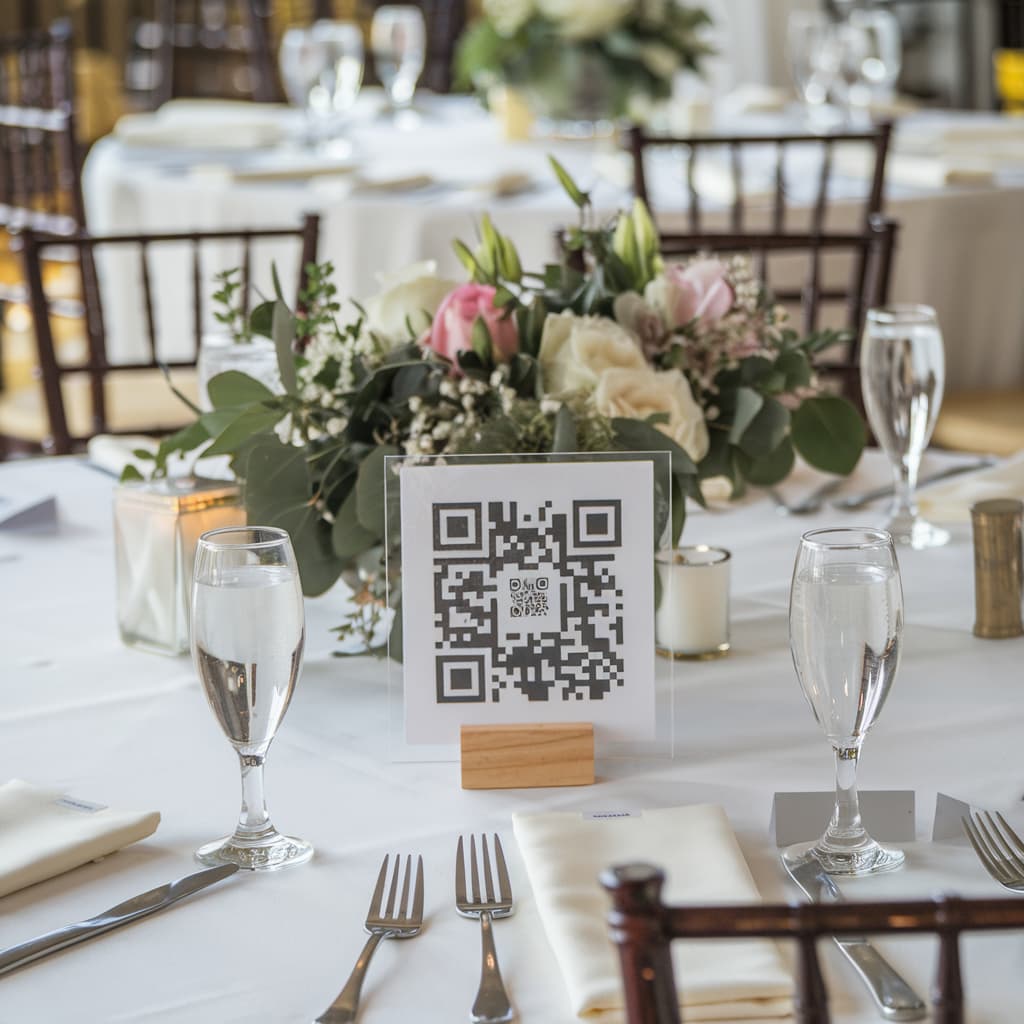
Place the QR Code in visible spots: tables, entrance, near the screen, on printed menus or programs. The more people scan, the richer the gallery becomes.
Step 3: Activate slideshow mode
In the Memoly dashboard, go to your album settings and activate presentation mode. A new tab or window will open with the gallery in slideshow format, ready to be displayed.
Step 4: Connect to your display
- With projector or big screen: connect your laptop via HDMI and mirror (or extend) your screen. Put the slideshow tab in full screen mode
- With smart TV: use Chromecast or connect with an HDMI cable to cast the slideshow
- With tablet: place a tablet in landscape mode on a visible stand for guests to enjoy
Step 5: Let it run!
Once configured, the slideshow updates automatically. You don't have to manage anything — the system handles displaying new photos as they arrive.
Tips for a successful live slideshow
Test before the event: run the slideshow beforehand to make sure the connection is stable and the display looks right on your screen.
Use stable Wi-Fi: the slideshow requires an internet connection. Prefer Wi-Fi over mobile data, especially in enclosed venues where signal can be unreliable.
Enable moderation if needed: as the album administrator, you can review photos before they appear in the slideshow — useful for formal events or mixed-audience gatherings.
Make an announcement: ask the emcee or DJ to let guests know about the slideshow and invite them to participate by scanning the QR Code.
Position the screen strategically: ideally, place it where all guests can easily see — not hidden in a corner. A central location, visible from most of the venue, maximizes impact.
What types of events benefit most from a live slideshow?
- Weddings: guest photos become part of the living decoration of the reception
- Graduation parties: the class watches their journey being documented in real time
- Birthday parties: especially for milestone celebrations like sweet 16, 30th, or 50th birthdays
- Corporate events: engagement and fun for teams at conferences or year-end parties
- Academic and cultural events: fairs, congresses, and exhibitions
- Baby showers and bridal showers: intimate moments made even more special on screen
Conclusion
A live slideshow turns an ordinary event into a shared, immersive experience. With Memoly, you set everything up in minutes and let your guests do the rest — submitting photos that appear in real time on the big screen.
Create your album with a live slideshow now — it's free to get started and requires no special equipment. Just a phone and a screen.